Event Details Instructions
Follow these steps to access and update your event details.
For the best user experience, access the event details page from a computer. If you experience any issues, please contact us at events@smbooths.ca.
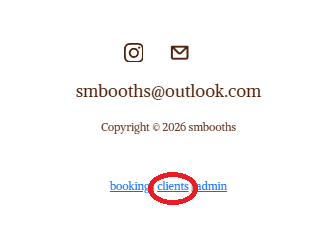
Go to the client link
Go to the bottom of the home page and you will see a client link.
Go directly to the events page
Alternatively, navigating to www.smbooths.ca/events will also bring you to the event details login page.
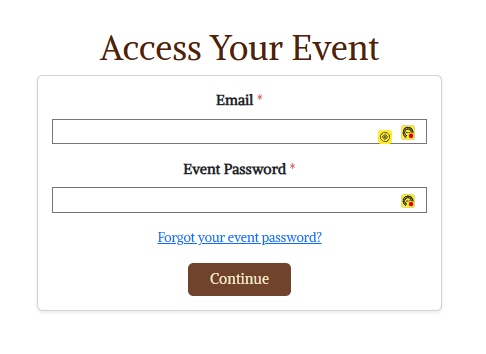
Log into your event details page
Enter your email and your event password. Your event password would have been emailed to you with the event details instructions. If you do not remember your password, you can recover it or email us and we will help you recover it.
Review your event details
Once logged in, you can view your event details. This includes the order summary and your event details. Payment records and a summary are shown at the bottom of the page.
Update package details
In the package details section, you can make event changes. You can also request to change the desired package.
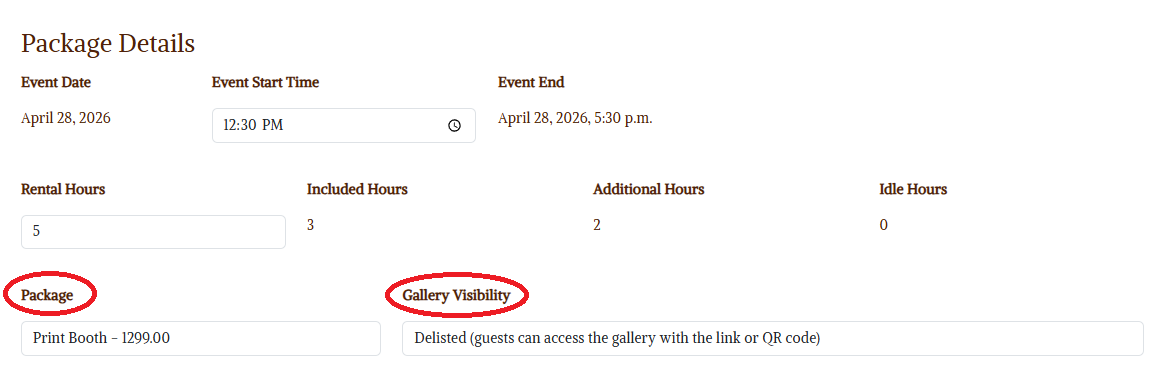
Gallery visibility options:
- Public: Guests can access the gallery directly from our site.
- Delisted: Guests can access the gallery with the link or QR code.
- Private: Guests get access to their photos, but the gallery is private.
Choose your template
Go to the template section, select your preferred theme, and choose your multi layout. The single template will automatically be selected for that theme.
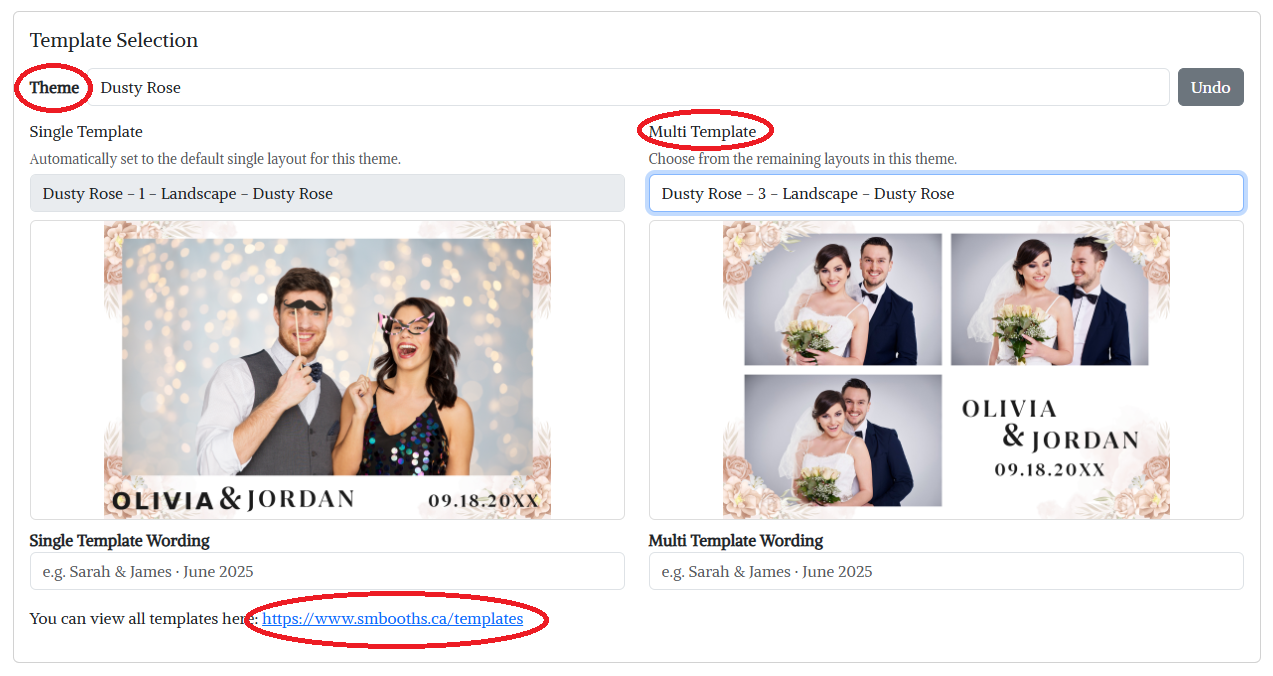
- To view all available templates, go to smbooths.ca/templates .
- If you had another template in mind, please contact us and we will try to find that template.
Choose your backdrop
Go to the backdrop section and select your backdrop from the dropdown.
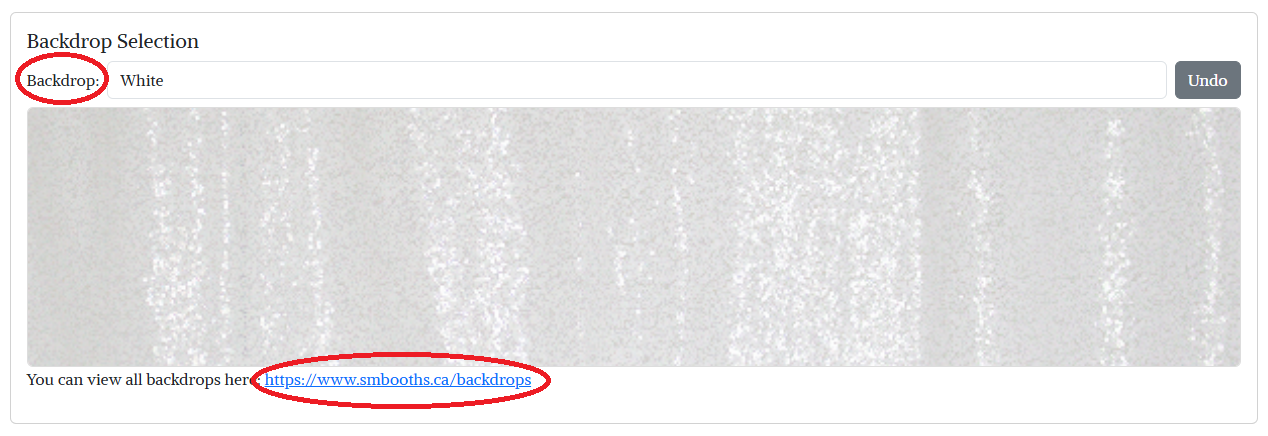
- To view available backdrops, go to smbooths.ca/backdrops .
- If you had another backdrop in mind, please contact us and we will try to find that backdrop.
Submit your changes
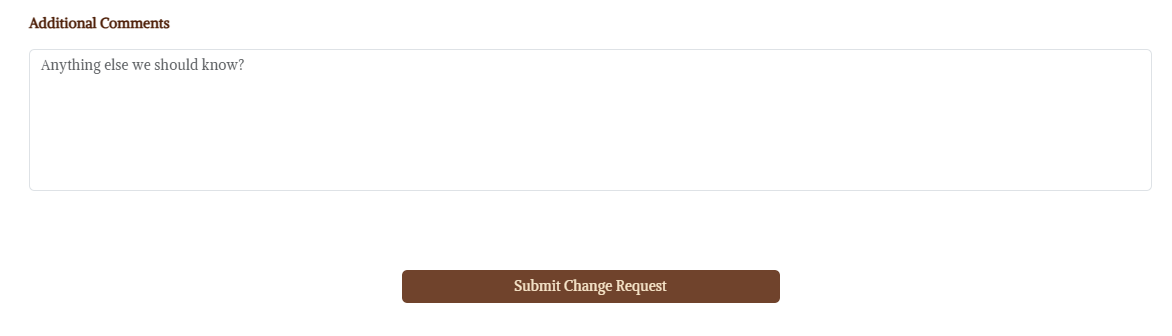
To submit changes, press the button at the bottom of the page. You can also add a comment for reference.